


Why use Google Pay?
Shop in stores, online, or in-app
Use Google Pay at your favorite stores, restaurants or online merchants.
Pay in a Snap!
Just tap your phone in stores and you’re good to go!
Safe and secure
Your card details are protected every time you pay.
Add your BDO Card
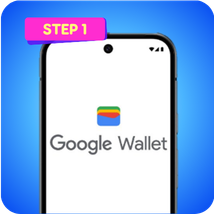
Step 1
Download Google Wallet from Google Play Store
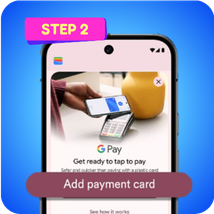
Step 2
Open the Google Wallet app and Tap “Add Payment Card”
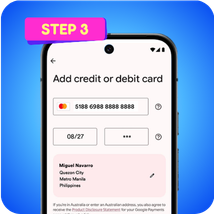
Step 3
Enter your card details manually or use your camera to scan your BDO card
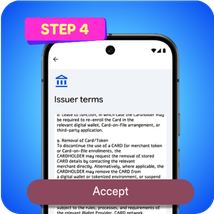
Step 4
Read and accept the Terms and Conditions
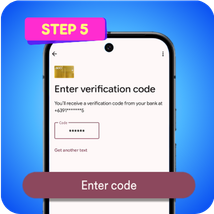
Step 5
Enter the OTP sent to your bank-registered mobile number or email address to verify your enrollment
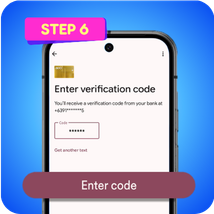
Step 6
And you’re all set to tap to pay with your BDO Card using Google Pay!
What BDO Cards can I add to Google Wallet?For now, only BDO Mastercard and Visa CREDIT CARDS (Principal, Supplementary, Corporate, and Virtual) can be added to Google Wallet, namely:
BDO Installment Card, BDO Debit Cards, and other BDO Credit Cards issued under American Express, JCB, UnionPay and Diners Club are NOT YET supported as of this time. Stay tuned on official BDO channels (website & Facebook page) for updates. |
Frequently Asked Questions
A token is a unique virtual number that replaces your real card number when making payments through Google Pay.
Yes. Google Pay protects your card details using advanced security measures such as tokenization and encryption, so your information remains private and is not shared with merchants when you pay.
- Download Google Wallet from the Google Play Store
- Tap “Add payment card”
- Use your device’s camera to scan your BDO card or manually enter your card details
- Read and accept the Terms and Conditions
- Verify your enrollment via OTP sent to your bank-registered mobile number or email address.
Note: Authentication methods may be updated in the future, depending on availability (e.g., Push to App or In-App Push options). - And, you’re all set to pay with Google Pay!
No. Google Wallet requires a compatible Android device running on Android 9 or later.
No. Google Pay for contactless payments is only available on compatible Android devices with NFC capability.
For now, only BDO Mastercard and Visa CREDIT CARDS (Principal, Supplementary, Corporate, and Virtual) can be added to Google Wallet, namely:
- BDO World Elite™ Mastercard®
- BDO Platinum Mastercard™
- BDO HOPE Mastercard
- BDO Gold Mastercard
- BDO ShopMore Mastercard
- BDO Standard Mastercard
- BDO Bench Mastercard
- BDO Pico De Loro Mastercard
- BDO Mastercard Corporate Card
- BDO Mastercard Virtual Card
- BDO Visa Signature
- BDO Visa Platinum
- BDO Visa Gold
- BDO Visa Classic
- BDO Visa Corporate Card
- BDO Visa Virtual Card
BDO Installment Card, BDO Debit Cards and other BDO Credit Cards issued under American Express, JCB, UnionPay and Diners Club are NOT YET supported as of this time. Stay tuned on official BDO channels (website & Facebook page) for updates.
You can try up to three (3) times. If you exceed the limit, you may try again after 24 hours. Make sure your card details are entered correctly before submitting to avoid failed attempts.
Before proceeding with authentication, please ensure the following:
- Your internet connection is stable
- Your BDO Credit Card is part of the list of eligible cards that can be added to Google Pay
- Your card is active and not expired
- Your card is NOT locked
- Card details are correct
- OTP sent to your bank-registered mobile number or email address is correct
If you are still unable to add your card, please try the following troubleshooting steps:
- Remove and add your card again
- Tap the ⋮ (three dots) on the top-right corner of Google Wallet
- Select “Remove payment method”
- Choose “Remove from the Wallet and all devices”
- Tap “Remove”
- Add your card again and complete the verification process
- Clear the Google Wallet app cache
- Go to Settings on your device
- Select Apps > Google Wallet
- Tap Storage & cache
- Select Clear cache
If the issue persists, please contact the BDO Contact Center at (+632) 8888-0000 for assistance, or visit your nearest BDO branch.
Simply unlock your phone using your PIN, fingerprint, or face recognition and hold it near the contactless payment terminal. A confirmation will appear once your payment is successful.
- In stores that accept contactless payments
- In apps that support Google Pay
- On websites with Google Pay at checkout
No, BDO Mastercard and Visa Virtual Cards are not yet supported for Tap to Pay transactions through Google Pay. Stay tuned on official BDO channels (website & Facebook page) for updates.
You may still use your BDO Virtual Cards for in-app and online payments through Google Pay.
- Add/enroll your card to Google Wallet
- Receive transaction updates
- Make in-app or online purchases
Yes. If you have multiple cards added to Google Wallet, you can set a default card or choose a different card before making a payment.
Yes. Google Pay is free. BDO will not charge any additional fees for using Google Pay for your purchases.
Yes. You can use Google Pay anywhere where contactless payments are accepted, for as long as it's accepted by the merchant.
Yes. Standard fees and charges will still apply to local and international transactions in foreign currency, same as with your physical card.
No. Google Pay is only applicable for straight purchases and does not support Buy Now Pay Later installment transactions using BDO Credit Cards, as of this time. Please present your physical card for Buy Now Pay Later transactions.
Yes. You will receive real-time notifications from the Google Wallet app after making a payment, provided your device is connected to the internet. You can also view the transaction history in BDO Online or BDO Pay.
The number shown on the receipt is a token number, which is a secure digital version of your card number. This helps protect your card details from being stored by merchants.
- Check if NFC is enabled
Make sure NFC is turned on in your device settings. (go to Settings > Connections > NFC) - Check your payment method
Ensure your card is active (not expired) and has available credit. - Confirm contactless is supported at the store
Verify if the store accepts contactless payments
For in-app or online payments, check the following:
- Check your payment method
Make sure the card linked to Google Pay is valid, not expired, and has sufficient funds or available credit. - Verify your card details
Ensure the details in your Google Pay settings are up to date. - Complete any required verification (if applicable)
Follow any prompts, such as OTP or bank authentication. - Retry the payment
Temporary issues (such as network or merchant system errors) can occur— wait a moment and try again.
If the issue persists, contact BDO Contact Center at (+632) 8888-0000.
- Immediately block your card
You can temporarily lock your card using the BDO Online app or immediately call the BDO Contact Center to block your card. This helps prevent any further transactions. - Report unauthorized transactions
Immediately contact BDO Contact Center or file a dispute through the usual card dispute process. Be sure to provide as much detail as possible, such as the date and amount of the transaction, and date and time the card is enrolled in Google Pay. - Request for a card replacement
If fraud is confirmed or suspected, you may request a new card. This will automatically deactivate any existing digital tokens linked to your old card.
No. Once your card expires, it can no longer be used for transactions including Google Pay. You will need to add and verify your replacement card in Google Wallet to continue using it.
- Open the Google Wallet app
- Select the card you want to remove
- Tap the ⋮ (three dots) on the top-right corner
- Select “Remove payment method”
- Select “Removed from this device only” or “Remove from the Wallet and all devices”
- Tap “Remove”
Only the token enrolled in the selected device will be removed and cannot be used for payments.
You may continue to use your physical card, as well as tokens enrolled in your other devices. Removing your card from one device will not affect your other enrolled devices.
Yes. If you remove a card from Google Wallet on a device, you can add the same card back to that same device at any time. Just follow the same steps to add your card.
- Block your card
Call the BDO Contact Center at (+632) 8888-0000 immediately to block your card. This helps prevent any unauthorized transactions. - Watch for unauthorized transactions
Review your recent transactions. If you notice anything suspicious, please contact the BDO Contact Center immediately or file a dispute through the usual card dispute process. Be sure to provide as much detail as possible, such as the date and amount of the transaction, and date and time the card is enrolled in Google Pay. - Request a card replacement
If your card details may have been compromised, you may request a new card. This will automatically deactivate any existing digital tokens linked to your old card.ions
No. If your BDO Card is temporarily locked in the BDO Online or BDO Pay app, it cannot be used for transactions through Google Pay, in-store, online, and app purchases, as well as physical card transactions.
Locking your card blocks card-based transactions until the card is unlocked again in BDO Online or BDO Pay.
No. Once the bank blocks your card, it can no longer be used for Google Pay transactions or physical card transactions including withdrawals.
You may visit the Google Pay Help Center for assistance on the Google Wallet or call the BDO Contact Center at (+632) 888-0000 for issues related to your card.
Contact us

BDO Corporate Center:
7899 Makati Avenue Makati City 0726, Philippines Trunkline: (+632) 8840-7000

BDO Contact Center:
Hotline: (+632) 8888-0000
Outside Metro Manila
(PLDT/Globelines): #8888-0000
(For landline only, press # followed by 8888-0000)
International Toll-Free:

Send a message to this channel for account-related concerns.
For scams, fraud, or lost/stolen cards, call the BDO Customer Contact Center at (02) 8888-0000. To report phishing attempts, email us at reportphish@bdo.com.ph.
